OneMob allows you to quickly and easily add a Fevo Buy button to your page of content. Any viewer can click the button and buy tickets right on your OneMob page! Here's how to add up to 3 Buy buttons to your page:
- Go to Pages
- Click New Page or hover over an existing page and click once highlighted to edit the Page
- Click + Add Button under the featured video placeholder
- Type "Buy Tickets Here" or any other text you want to display on the button
- Click the dropdown where it shows "URL" by default and change to "Fevo"
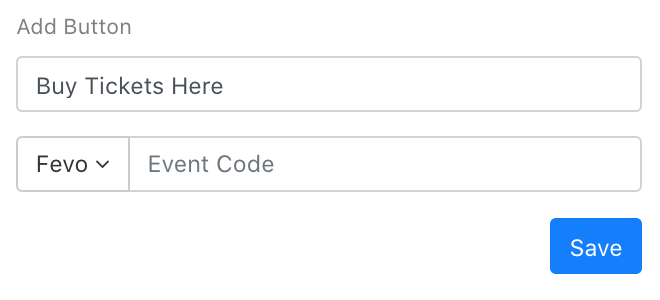
- Paste the Fevo Event Code in the field provided
- Click Save
You can add up to 3 different buttons on your page to sell tickets to different events/dates all in one place!
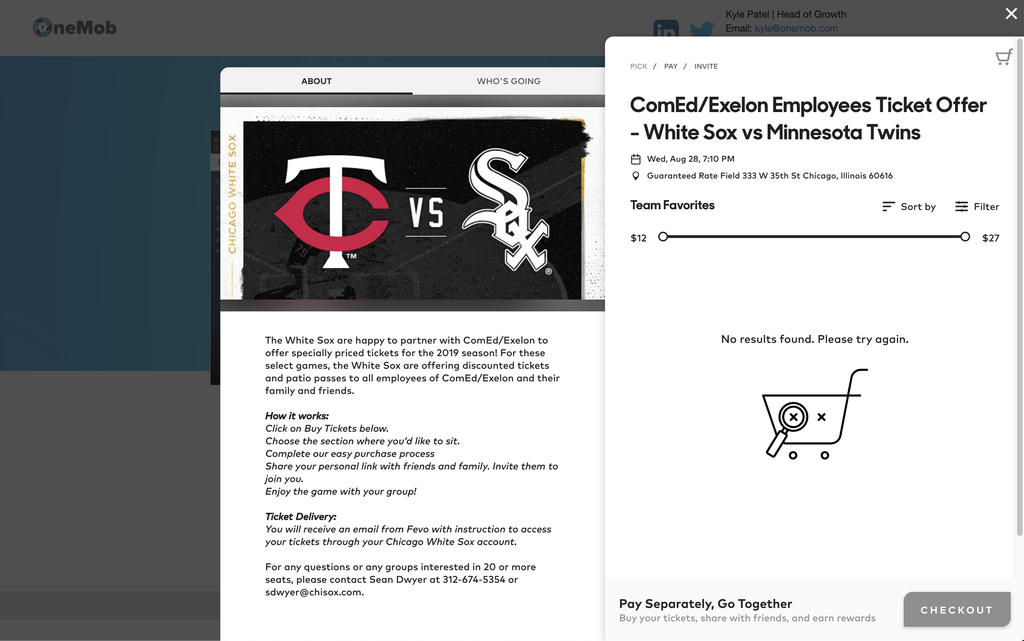
Here's an example of what the Fevo Buy widget looks like when a viewer clicks your Buy button:
Have some question about the Fevo Buy button within OneMob? Click here to choose how you would like to reach the OneMob support team to send us your question!
Was this helpful?